Restore Instance
This page explains how to restore your self-hosted Appsmith instance backup using the appsmithctl utility.
Prerequisites
Before starting, ensure the following:
- Your self-hosted Appsmith instance is running. If you haven’t already installed Appsmith, refer to the Installation guides. This guide assumes you are working with an existing installation.
- Ensure you have at least 2 GB of free storage available to perform restore tasks.
- Ensure that you have the appropriate access to execute
docker-compose,kubectl, orsupervisorctlcommands, depending on your deployment setup. - Verify that the backup archive file you want to restore is available.
Restore instance backup
Follow the appropriate instructions based on your deployment environment:
- Docker
- Kubernetes
Follow these steps to restore your Appsmith instance for Docker-based installations:
-
Copy the backup archive file:
docker cp appsmith-backup-TIMESTAMP.tar.gz.enc appsmith:/appsmith-stacks/data/backup/ -
Restore the Appsmith instance:
docker-compose exec -it appsmith appsmithctl restoreThe command lists available backup archives, with the latest appearing at the bottom.
-
Select a backup archive from the list to restore.
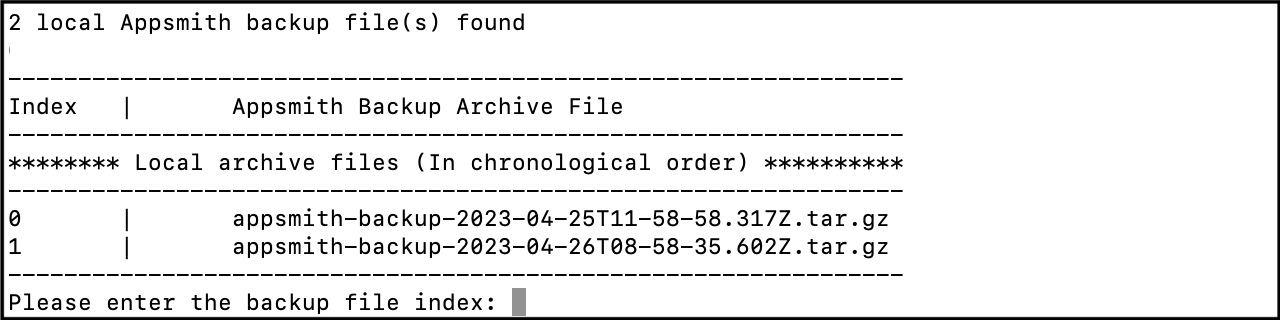
Select a backup archive while restoring Appsmith instance AttentionIf you are restoring an older version of Appsmith, a warning message may appear. Update the
docker-compose.ymlfile with the Appsmith image version you wish to restore. -
When prompted, enter the password you entered when creating the backup. This password is required to restore the backup. The
restorecommand restores the backup and restarts the Appsmith server to apply the changes.
Follow these steps to restore your Appsmith instance for Kubernetes-based installations:
-
Retrieve the name of the Appsmith pod:
kubectl get pods -
Copy the backup archive file to the pod. Replace
ANY_APPSMITH_POD_NAMEwith the pod name:kubectl cp appsmith-backup-TIMESTAMP.tar.gz.enc ANY_APPSMITH_POD_NAME:/appsmith-stacks/data/backup/ -
Restore the backup. Replace
ANY_APPSMITH_POD_NAMEwith the pod name:kubectl exec -it ANY_APPSMITH_POD_NAME -- appsmithctl restore -
When prompted, enter the password you entered when creating the backup. This password is required to restore the backup.
-
Restart the Appsmith pods based on your setup:
-
If autoscaling is turned on:
kubectl rollout restart deployment appsmith -
If autoscaling is turned off, or you’re using the Community Edition, the
restorecommand restores the backup and restarts the Appsmith server to apply the changes.
-
Automate restores
Starting with Appsmith v2.4.1, you can run appsmithctl restore without prompts for automated disaster recovery or environment rebuilds:
appsmithctl restore --non-interactive --backup-file=appsmith-backup-TIMESTAMP.tar.gz.enc
| Option | Description |
|---|---|
--backup-file=<name> | Selects an exact archive filename, including its extension. The command doesn't pick the latest backup for you. Requires = and a filename, not a path or an index. Checks local archives first, then S3 archives on an active paid plan with S3 sync configured, downloading the S3 copy only when the filename isn't already local. Also works without --non-interactive to skip the selection prompt. |
--non-interactive | Disables all prompts. Requires --backup-file=<name> and the secrets below in the restore process environment. |
--force | Continues when the backup's Appsmith version differs from the running instance. Applies only with --non-interactive, where a mismatch otherwise stops the restore. Interactive restores ask for confirmation instead, with or without this option. It doesn't bypass archive or secret validation, and it doesn't make the two versions compatible. |
The secrets the restore process needs depend on the archive format:
| Archive | Required secrets |
|---|---|
Encrypted (.tar.gz.enc) | APPSMITH_BACKUP_ARCHIVE_PASSWORD, set to the password used when creating the archive. Appsmith restores the instance encryption keys from the archive itself. |
Unencrypted (.tar.gz) | APPSMITH_ENCRYPTION_PASSWORD and APPSMITH_ENCRYPTION_SALT, set to the values from the instance that created the backup. The archive password isn't required. |
The archive password is a transient secret. Supply it from your CI/CD secret store for a single restore invocation, and never keep it in docker.env, Helm values, or source control. The encryption password and salt are durable instance secrets: keep them out of CI configuration and source control, but expect the restore to write them into the instance's docker.env, where they belong.
Appsmith checks only that the encryption password and salt are present, not that they're correct. Values that don't match the source instance let the restore finish while leaving every stored datasource credential undecryptable.
When APPSMITH_BACKUP_ARCHIVE_PASSWORD is set, Appsmith uses it for a single decryption attempt and doesn't fall back to the prompt, even in interactive mode.
appsmithctl backup writes an unencrypted archive when it runs with --non-interactive or without a terminal, which is the usual case in a pipeline. An unencrypted archive holds a plaintext database dump, so protect it at rest and don't keep it as a pipeline artifact. For more information, see Backup Instance.
The following examples restore an encrypted archive that you copied to /appsmith-stacks/data/backup/ using the steps above. Replace TIMESTAMP and the container or pod name with your values. For an unencrypted archive, use the .tar.gz filename and deliver APPSMITH_ENCRYPTION_PASSWORD and APPSMITH_ENCRYPTION_SALT the same way instead of the archive password.
- Docker
- Kubernetes
Inject APPSMITH_BACKUP_ARCHIVE_PASSWORD into the runner's environment, then pass the variable name, not its value, through to the container:
docker exec \
  -e APPSMITH_BACKUP_ARCHIVE_PASSWORD \
  appsmith appsmithctl restore \
  --non-interactive \
  --backup-file=appsmith-backup-TIMESTAMP.tar.gz.enc
Writing -e VARIABLE without a value sends the password in the request body instead of on a command line, so it stays out of process lists and shell history. Don't allocate a TTY (-t) in a pipeline. On Compose v2, replace docker exec with docker compose exec -T.
Deliver the password to the pod through a Kubernetes Secret. Setting it only on the machine that runs kubectl has no effect, and passing it on the kubectl exec command line writes it in plaintext to the kube-apiserver audit log, because exec arguments travel as query parameters in the request URI.
-
Create a Secret holding
APPSMITH_BACKUP_ARCHIVE_PASSWORDthrough your cluster's secret management. With plainkubectl, read the password from a file rather than from the command line, which would leave it in the runner's process list and shell history:kubectl create secret generic appsmith-restore \
--from-file=APPSMITH_BACKUP_ARCHIVE_PASSWORD=./archive-passwordCreate
./archive-passwordwith mode0600, and delete it once the Secret exists. -
Reference the Secret from the Appsmith deployment:
envFrom:
  - secretRef:
name: appsmith-restore -
Apply the change and wait for the rollout to finish. The replacement pod doesn't carry the backup archive, so copy it now. Replace
ANY_APPSMITH_POD_NAMEwith the new pod name:kubectl cp appsmith-backup-TIMESTAMP.tar.gz.enc ANY_APPSMITH_POD_NAME:/appsmith-stacks/data/backup/ -
Run the restore:
kubectl exec ANY_APPSMITH_POD_NAME -- \
  appsmithctl restore \
  --non-interactive \
--backup-file=appsmith-backup-TIMESTAMP.tar.gz.enc -
Remove the
envFromentry and apply again. The resulting rollout both withdraws the password and restarts the pods. Then delete the Secret, which removing the reference leaves in place:kubectl delete secret appsmith-restore
This procedure narrows the password's exposure rather than removing it. Between the rollout in step 2 and the one in step 5, envFrom puts the password in the environment of every process in the pod, including the running Appsmith server, and the Secret itself is readable by anyone holding get secrets in the namespace and stored base64-encoded in etcd unless the cluster encrypts secrets at rest. Because an encrypted archive carries the instance encryption keys, this password ultimately protects every stored datasource credential, so rotate it after the restore.
Make your pipeline stop when appsmithctl restore returns a nonzero exit status. In non-interactive mode, unknown filenames, paths supplied as filenames, missing secrets, failed decryption, and version mismatches all exit with status 1 before the command stops services or changes the database. A failure during the restore itself can leave the instance partially restored.
Troubleshooting
If you encounter any issues during the restore process, consider the following:
- Ensure you've copied the backup archive to the correct folder within the container or pod.
- Ensure the S3 bucket has appropriate permissions to list the backup archives from the bucket.
- Verify that you are on an Appsmith paid plan and your plan is active to list backup archives from S3 bucket. For more information, see License & plans.
- Verify that you have the required permissions to execute
docker-composeorkubectlcommands. - If restoring an unencrypted archive, confirm that
APPSMITH_ENCRYPTION_PASSWORDandAPPSMITH_ENCRYPTION_SALTmatch the values from the instance that created the backup. An encrypted archive carries these values, so it needs only the archive password. - If restarting the pods fails, check the logs for errors. For more information, see Get Container logs guide.
If you continue to face issues, contact support using the chat widget available in the bottom-right corner of this page.